MAKER TUTORIALHow to use SCORE-C LIVE APP
BUILDCIRCUIT · 2022-12-17
-
Download the SCOREDUINO CONTROLLER app or SCORE-C LIVE app for CRICCLUBS and PLAYHQ matches. For cricclubs and playhq matches, you should see live scores on the screen as soon as the given match ID is entered.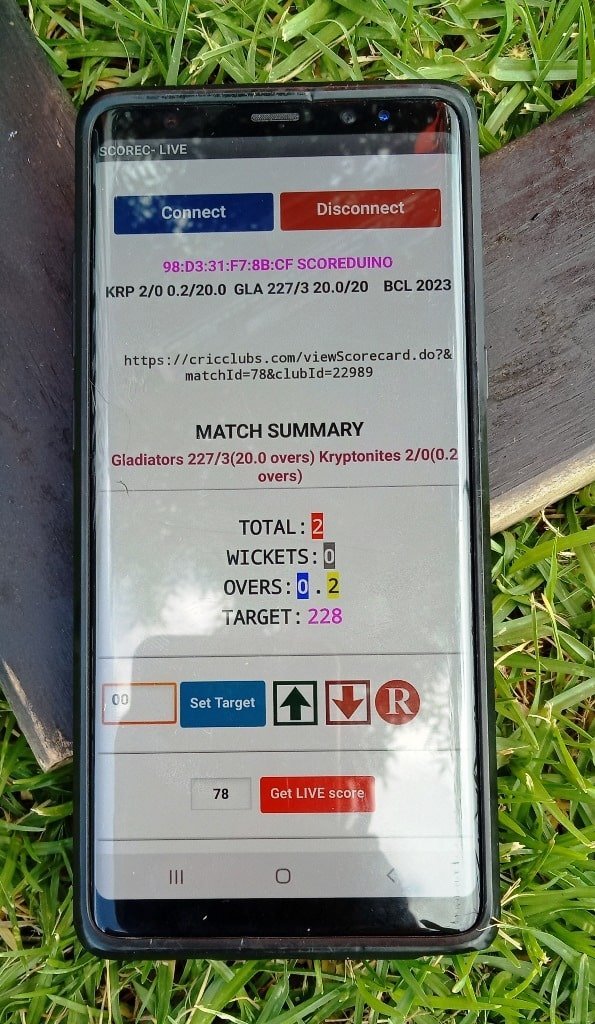
Connect Bluetooth:
- Go to your phone settings and turn on the Bluetooth.
- Turn on the scoreboard and make sure the Bluetooth module's LED is flashing.
- On the Bluetooth settings page, search Bluetooth with the name ‘SCOREDUINO’ and pair it up using code: 1234.
- Open the app and press CONNECT. Find SCOREDUINO and select it. You will immediately hear 'SCOREBOARD IS CONNECTED'. Then you can use the scoreboard.
[caption id="attachment_12908" align="alignnone" width="349"]
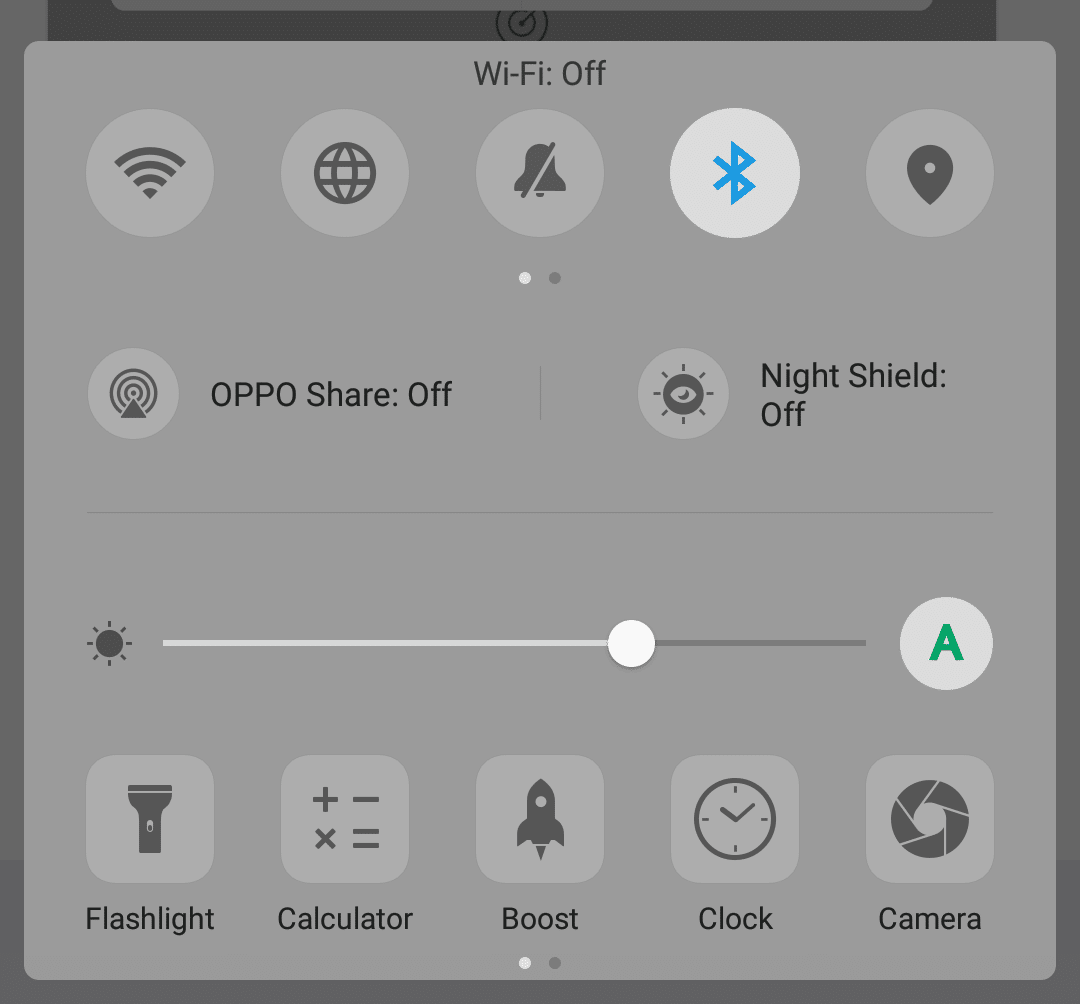
Turn on Bluetooth of your phone[/caption]
[caption id="attachment_12901" align="alignleft" width="333"]
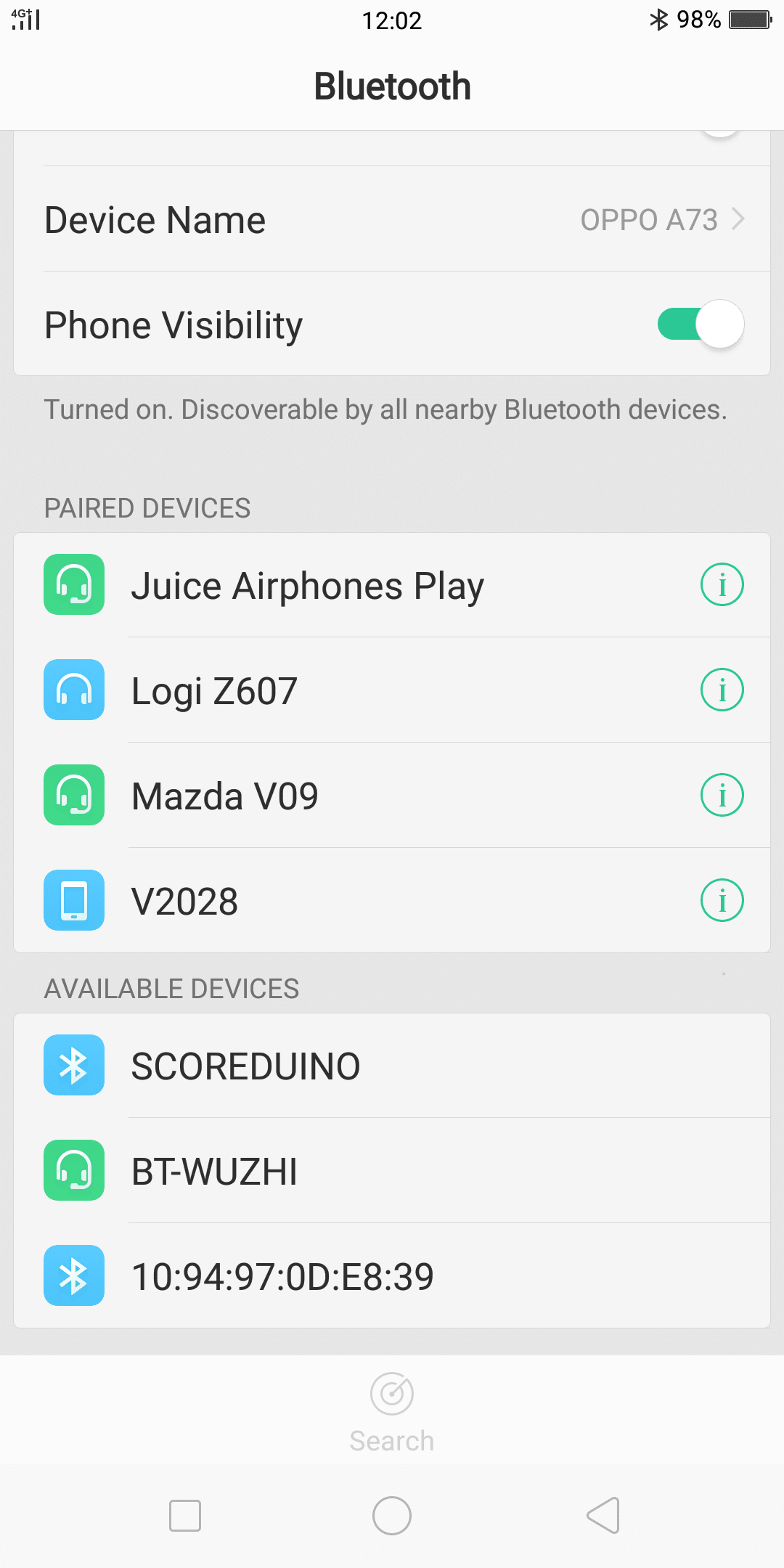
Go to Bluetooth Setting and search for SCOREDUINO[/caption]
[caption id="attachment_12903" align="alignnone" width="335"]
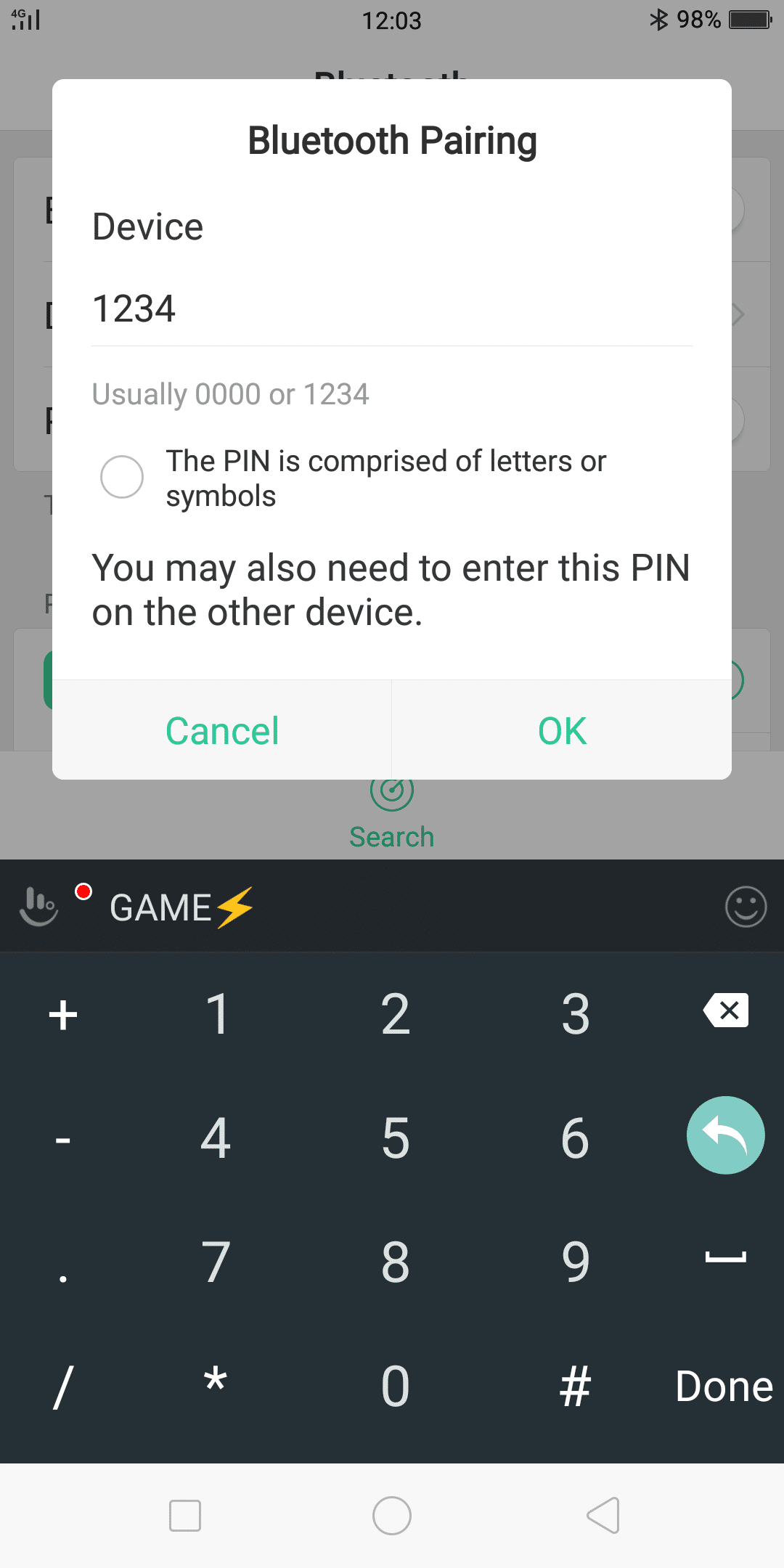
After you find SCOREDUINO, select it and pair it using code 1234[/caption]
[caption id="attachment_12904" align="alignnone" width="361"]
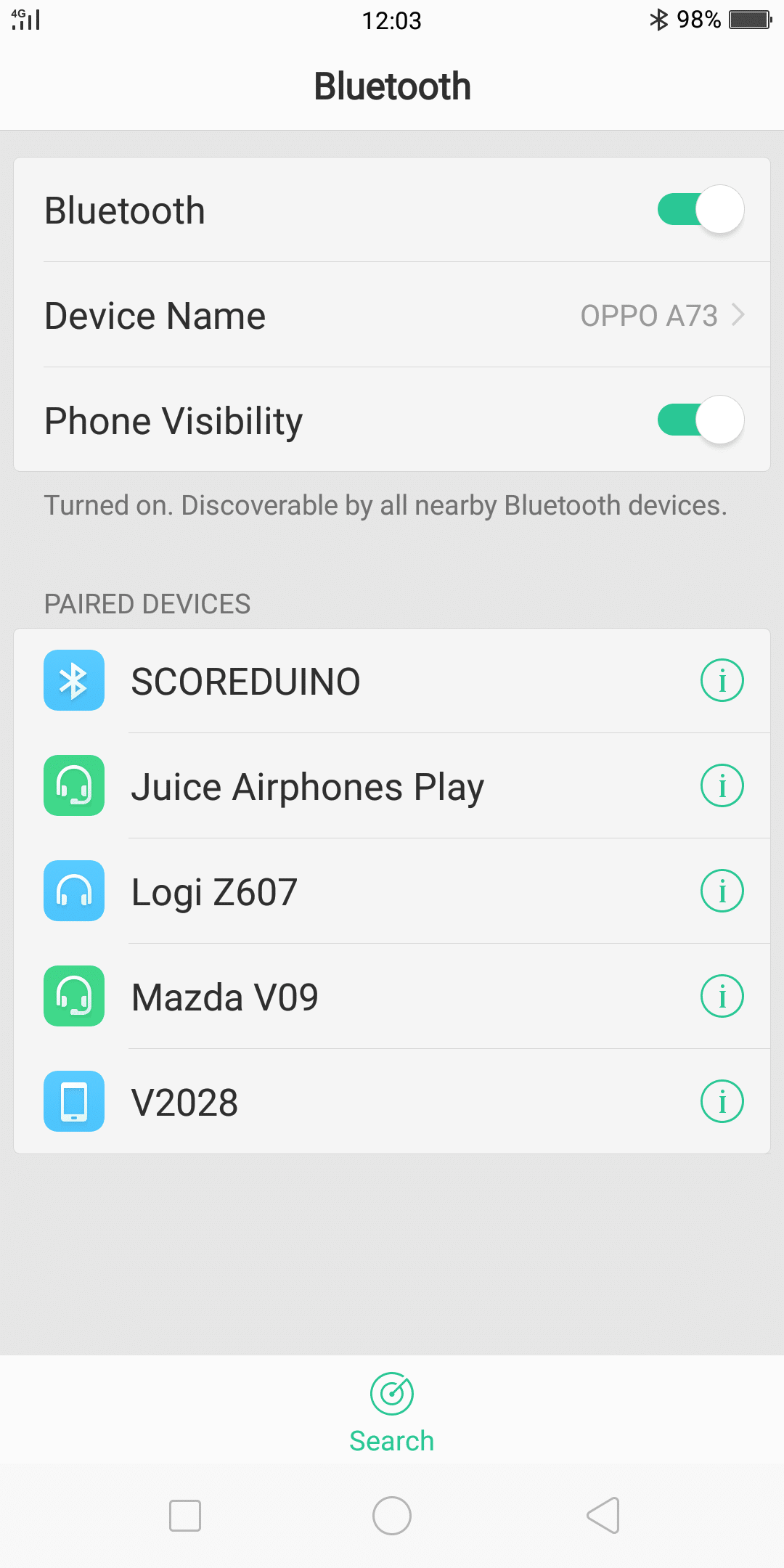
Then you will see SCOREUINO in the PAIRED DEVICES list[/caption]
[caption id="attachment_12905" align="alignnone" width="337"]
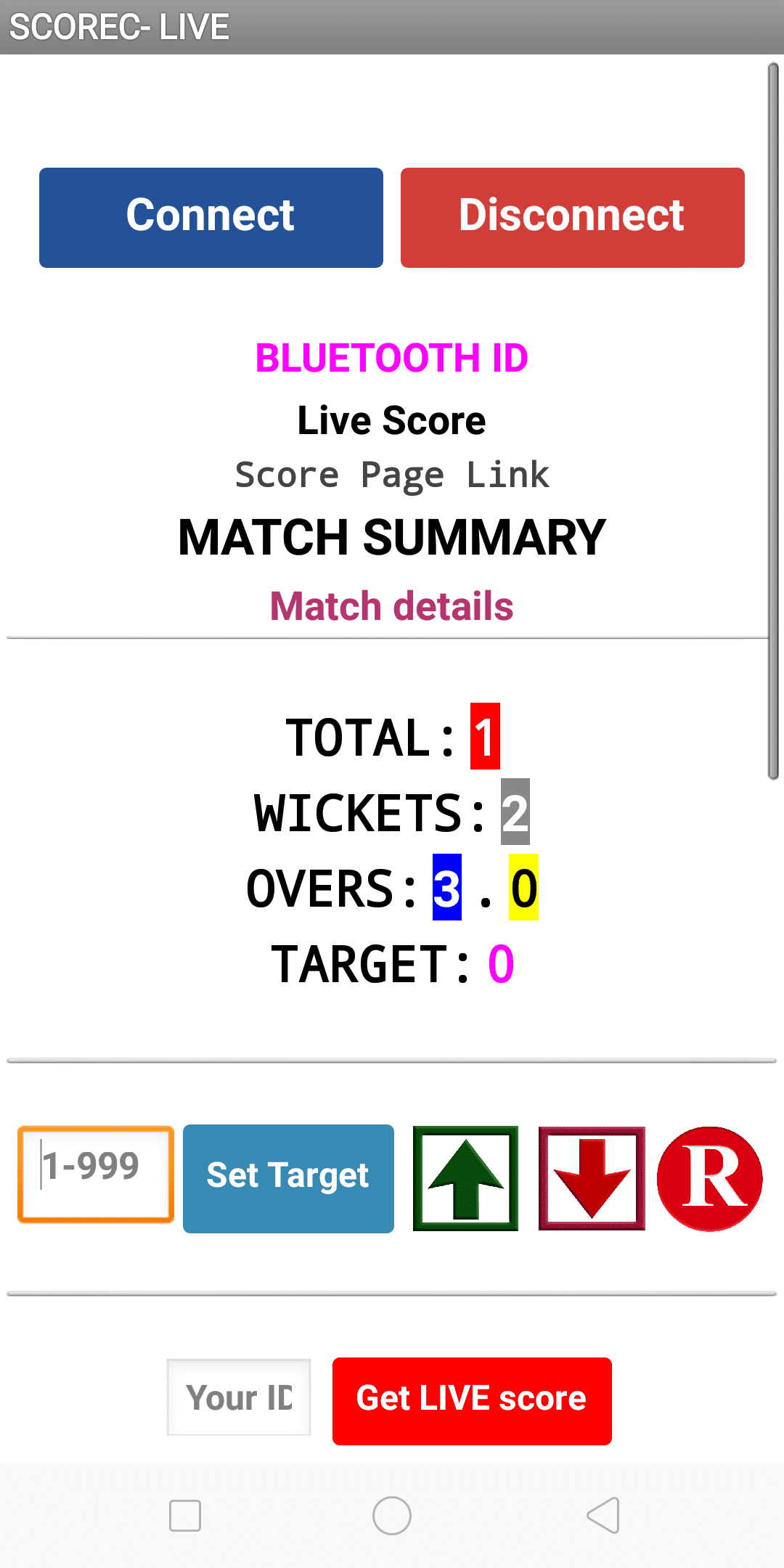
Go to your app and press CONNECT button[/caption]
[caption id="attachment_12906" align="alignnone" width="358"]
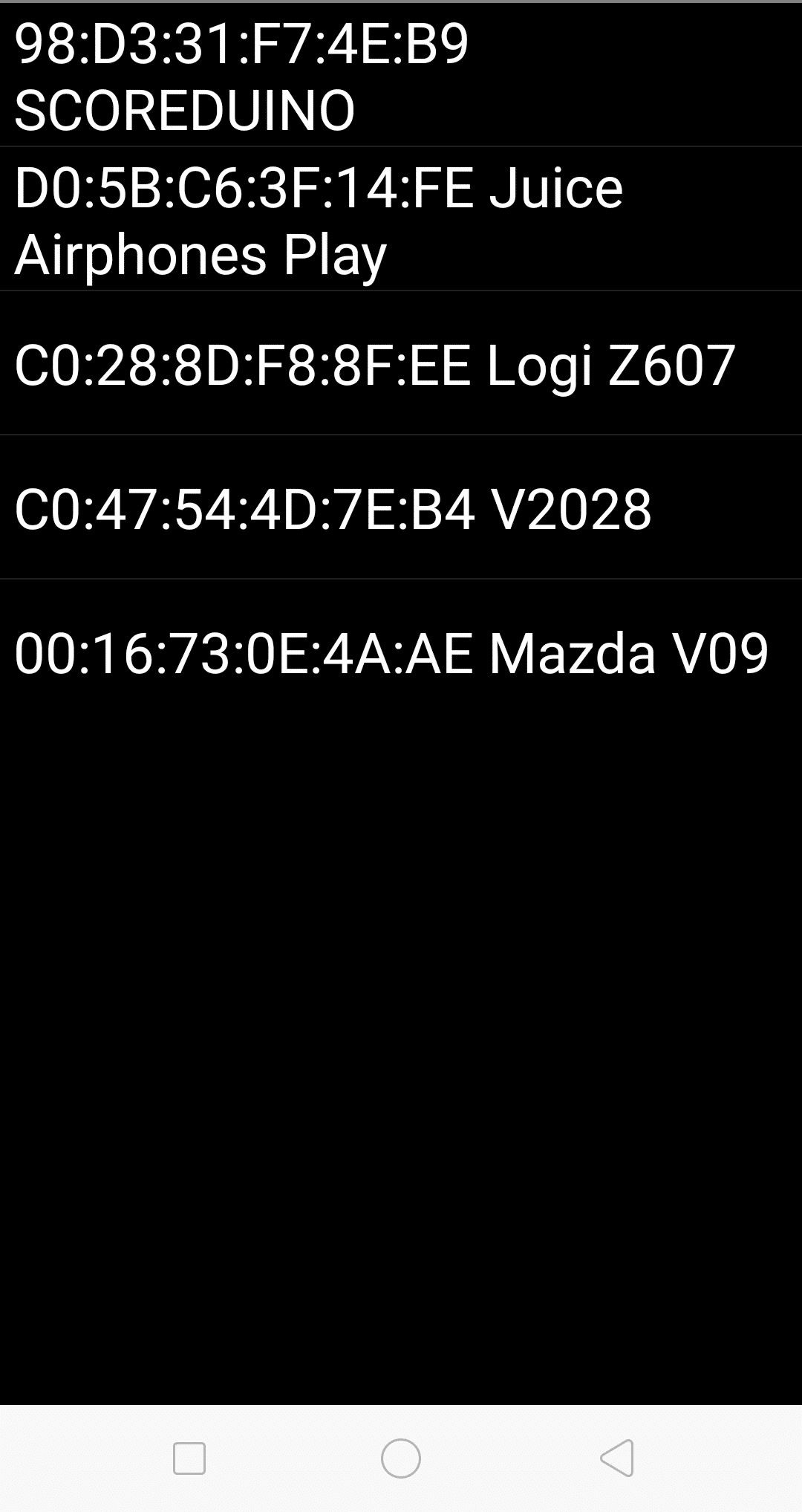
Select SCOREDUINO from the list of Bluetooth devices[/caption]
[caption id="attachment_12907" align="alignnone" width="339"]
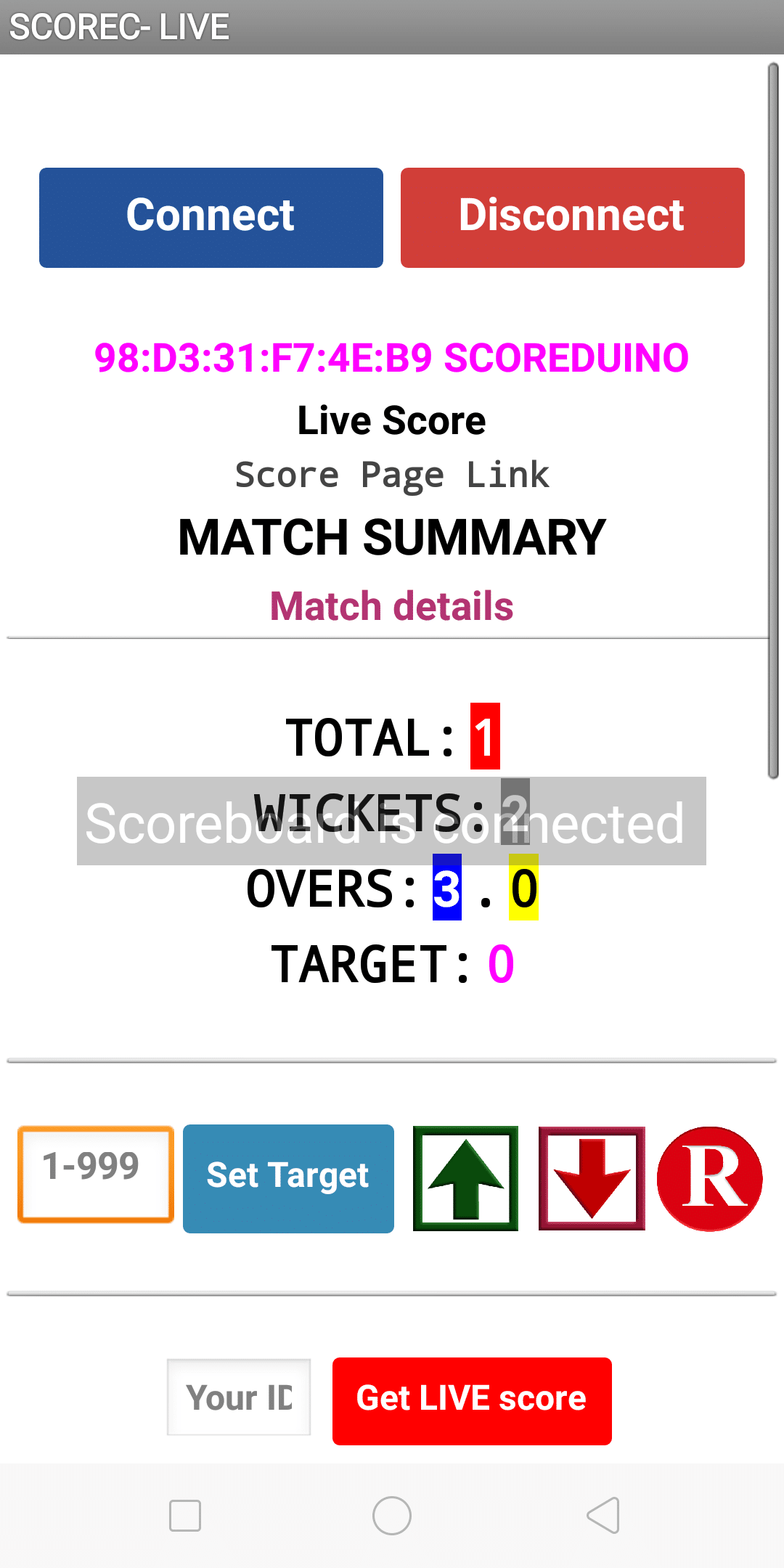
After you select SCOREDUINO, you will see the Bluetooth ID on the main screen and you will hear the sound 'SCOREBOARD IS CONNECTED'[/caption]
Enter your match ID to see the live scores